Cancelling Subscriptions and Requesting Refunds on Short Drama Apps
How to cancel auto-renewing passes, what happens to your access, and how refund requests generally work through the Apple App Store and Google Play.
Auto-renewing passes and accidental coin purchases are among the most common complaints about short drama apps. The good news is that both major app stores give you tools to manage subscriptions and request refunds. Refunds are never guaranteed, but cancelling is always in your control.
Cancelling a subscription
Subscriptions purchased through the app stores are managed in your store account:
- iPhone: open Settings, tap your name, then Subscriptions, and choose the subscription to cancel.
- Android: open Google Play, tap your profile, then Payments and subscriptions, then Subscriptions.
Deleting the app does not cancel a subscription. This is the single most common reason people keep paying for a pass they no longer use.
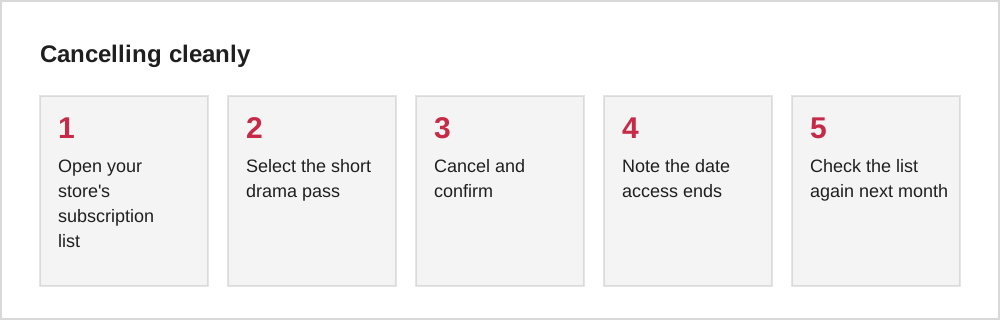
Cancelling usually stops the next renewal while keeping access until the end of the current period, so you can cancel immediately after subscribing and still use the time you paid for.
Requesting a refund
| Store | General process |
|---|---|
| Apple App Store | Requests are generally made through Apple's Report a Problem website, where you select the purchase and a reason |
| Google Play | Google's help pages describe requesting refunds for recent purchases through Google Play, and contacting the developer in other cases |
Both stores review requests individually and their rules can change, so check their current help pages for time limits and conditions.
When to contact the app
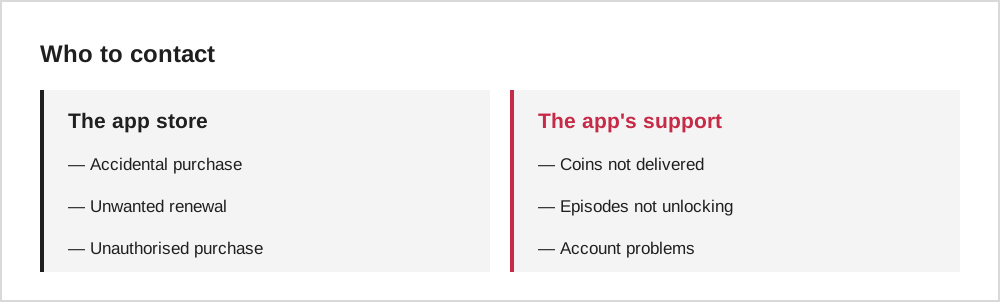
Some problems are best handled by the app's own support, for example coins that were charged but never arrived. Look for a help or feedback option in the app's settings and include your order number or receipt.
Preventing the problem
Keeping good records
Refund requests and support conversations go more smoothly with good records. When you buy coins or a pass, the app store usually sends a receipt by email. Keeping these in a single folder makes it easy to find the order number, date and amount if something goes wrong. A screenshot of the purchase screen, including the renewal terms, can also help.
Records are especially useful for subscriptions. If you cancel a pass, take a screenshot of the confirmation showing when access ends. If you are charged again later, you have clear evidence of the cancellation date to share with the store's support team.
Where to find your subscriptions
On an iPhone or iPad, open Settings, tap your name, then Subscriptions to see active and expired plans and cancel any of them. On Android, open the Google Play Store, tap your profile picture, then Payments and subscriptions, then Subscriptions. On both platforms you can also see past purchases, which is useful for checking what you were charged.
Deleting the app does not cancel a subscription made through the app store; you must cancel in the store settings. If you subscribed on a website instead, cancellation is handled by that website or the payment provider, which is another reason to prefer purchases through the official stores where the cancellation route is clear.
Writing a clear refund request
A refund request is most likely to be handled smoothly when it is short and specific. State what you bought, the date and amount, and the reason, for example an accidental purchase by a child, a subscription that renewed after you believed you had cancelled, or content that would not load. Avoid long explanations or emotional language.
Apple handles requests through its Report a Problem page, and Google Play through the order history in your account or its help centre. Policies and time limits differ, and refunds are not guaranteed, so check the current rules on each store's help pages. Keeping screenshots of the purchase and any error messages makes the process easier.
Common questions
Can I get a refund for coins I already spent?
Policies vary and refunds are reviewed case by case. Explain clearly what happened, for example that the purchase was accidental or the content did not unlock.
What if I do not recognise a charge?
Check whether another device or family member could have made it. If not, change your store password and review signed-in devices, then contact the store.
The short version
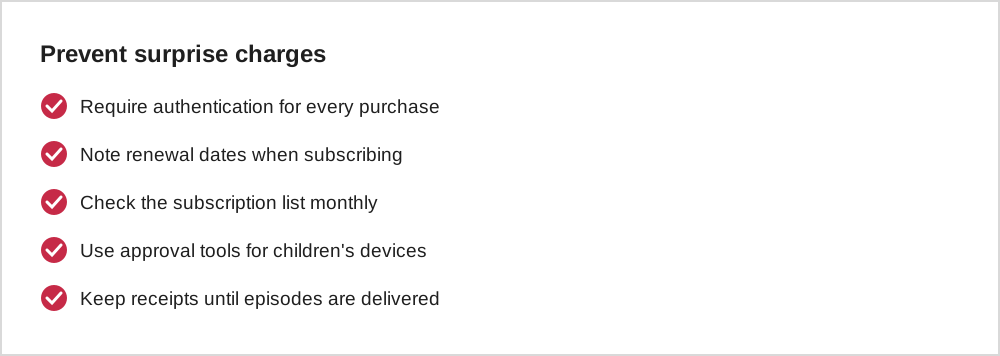
Cancel subscriptions in your store settings, not by deleting the app. Request refunds through the store's official process, contact the app for delivery problems, and prevent surprises with purchase authentication and monthly checks.